 TrainAtlas
To get train platform change alerts, follow the correct departure, enable the relevant alerts in your rail app, and allow notifications on your phone. A saved route or a Lock Screen card alone does not mean you will hear a sound when the platform changes.
This guide explains the TrainAtlas setup, how to check a UK departure in National Rail, and what to do when a platform is missing or information looks old. Coverage depends on the service and its data source. Keep checking station boards and announcements before boarding.
Notifications, departure boards and Live Activities
These three ways of following a train serve different purposes:
| Update | What it provides | What to check |
|---|---|---|
| Journey notification | An alert about a supported trip event | The selected train, app alert switches and phone notification permission |
| Live departure board | Available station information when you view it | The exact departure, platform and freshness of the information |
| Live Activity | Ongoing trip information on the iPhone Lock Screen | Pro access in TrainAtlas, active tracking and Live Activity permission |
A Live Activity can change without making a sound. Notifications have their own permission and presentation settings. Likewise, pinning a train inside an app does not establish that it sends push alerts for every change.
Set up platform and delay alerts in TrainAtlas
Start by saving the correct train, travel date and stations. If you need help finding or logging a journey, use our train journey map guide.
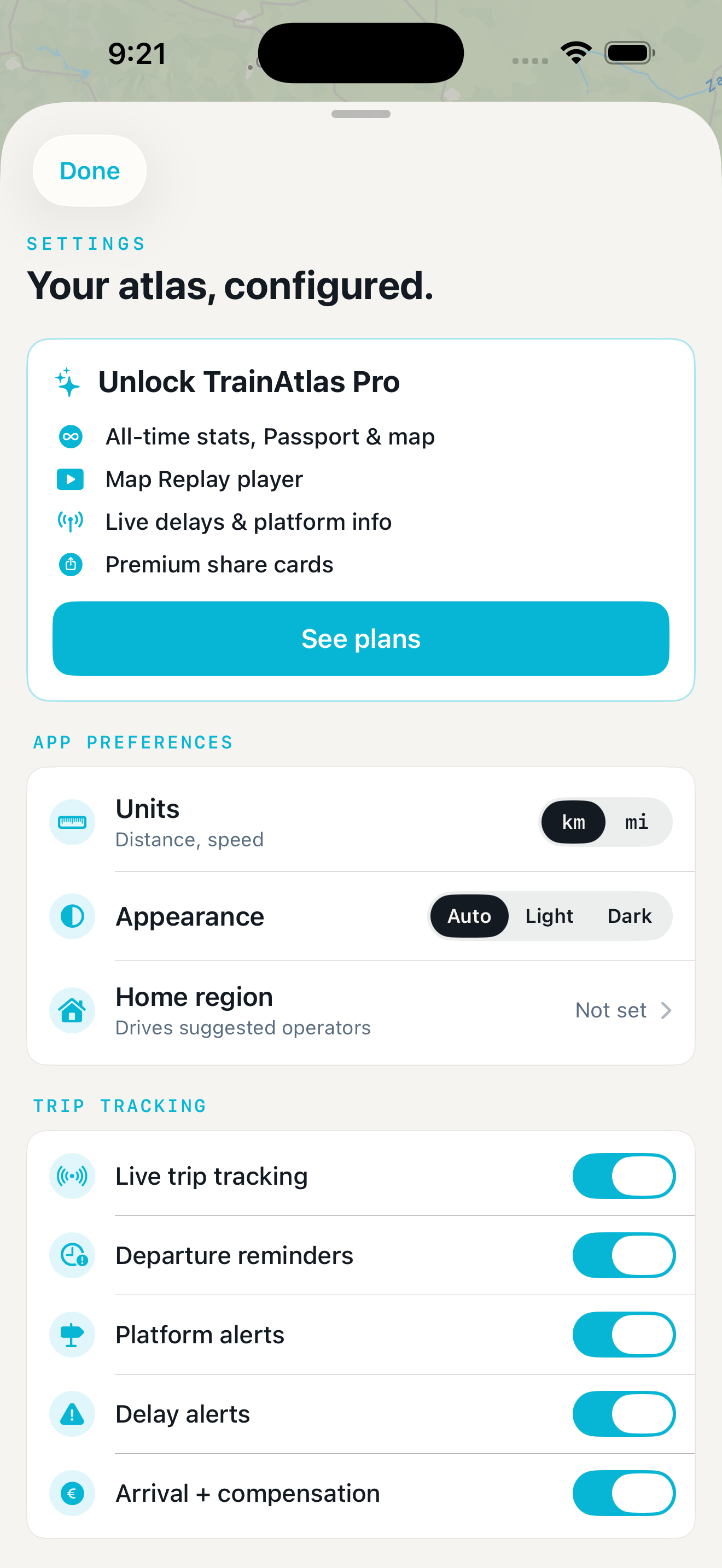
Then open the gear button on the Map tab to reach Settings. Under Trip Tracking, check these switches:
- Live trip tracking enables the tracking feature.
- Platform alerts controls platform notifications.
- Delay alerts controls delay notifications.
- Departure reminders is useful if you also want a reminder before travelling.
Live trip tracking and Live Activities require TrainAtlas Pro. Seeing enabled switches in Settings does not mean your account has Pro access. Check the current plan comparison if you are unsure.
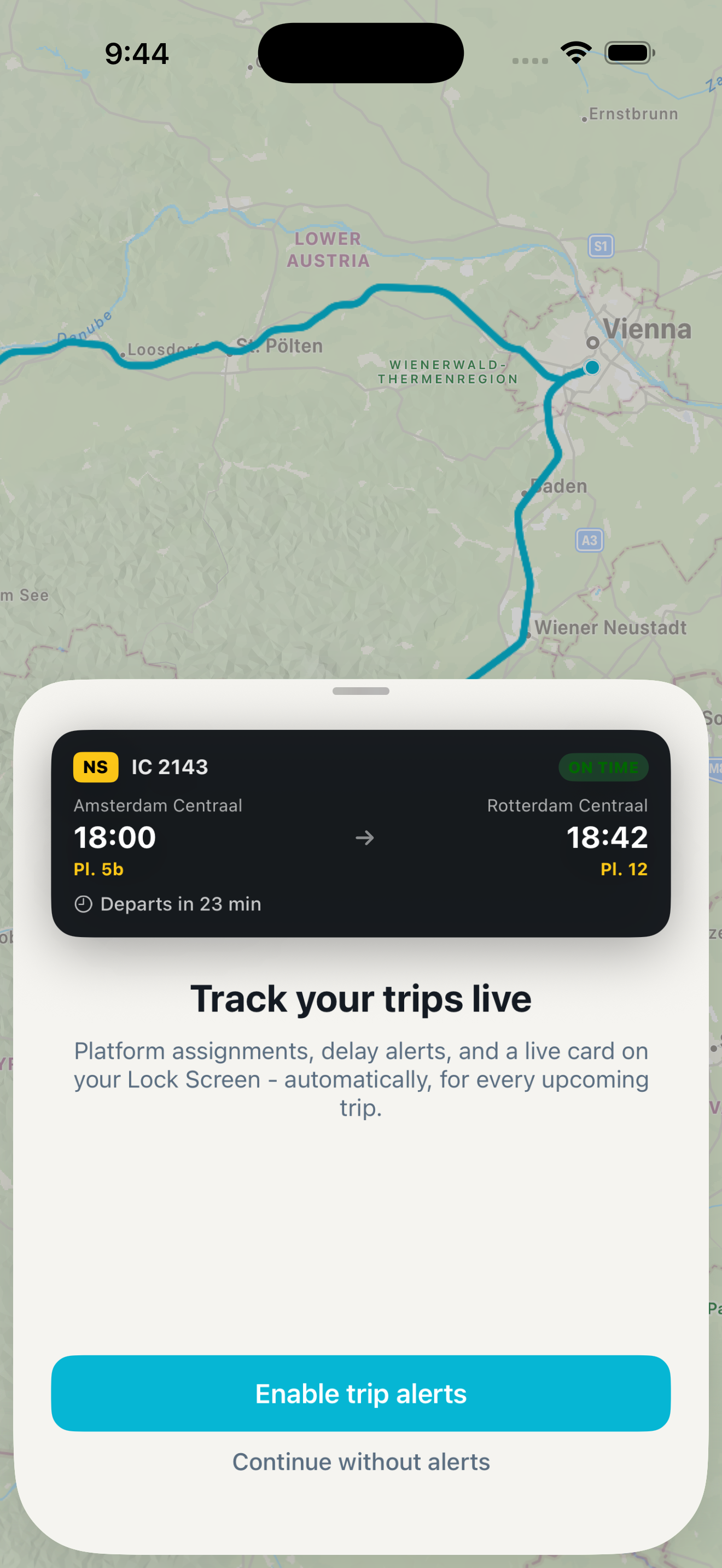
When you first save an upcoming trip with Pro, TrainAtlas can show Track your trips live. Choose Enable trip alerts to request notification permission. If you previously chose Continue without alerts, revisit the alert switches: that choice turns off the separate trip alerts.
Allow notifications and Live Activities on iPhone
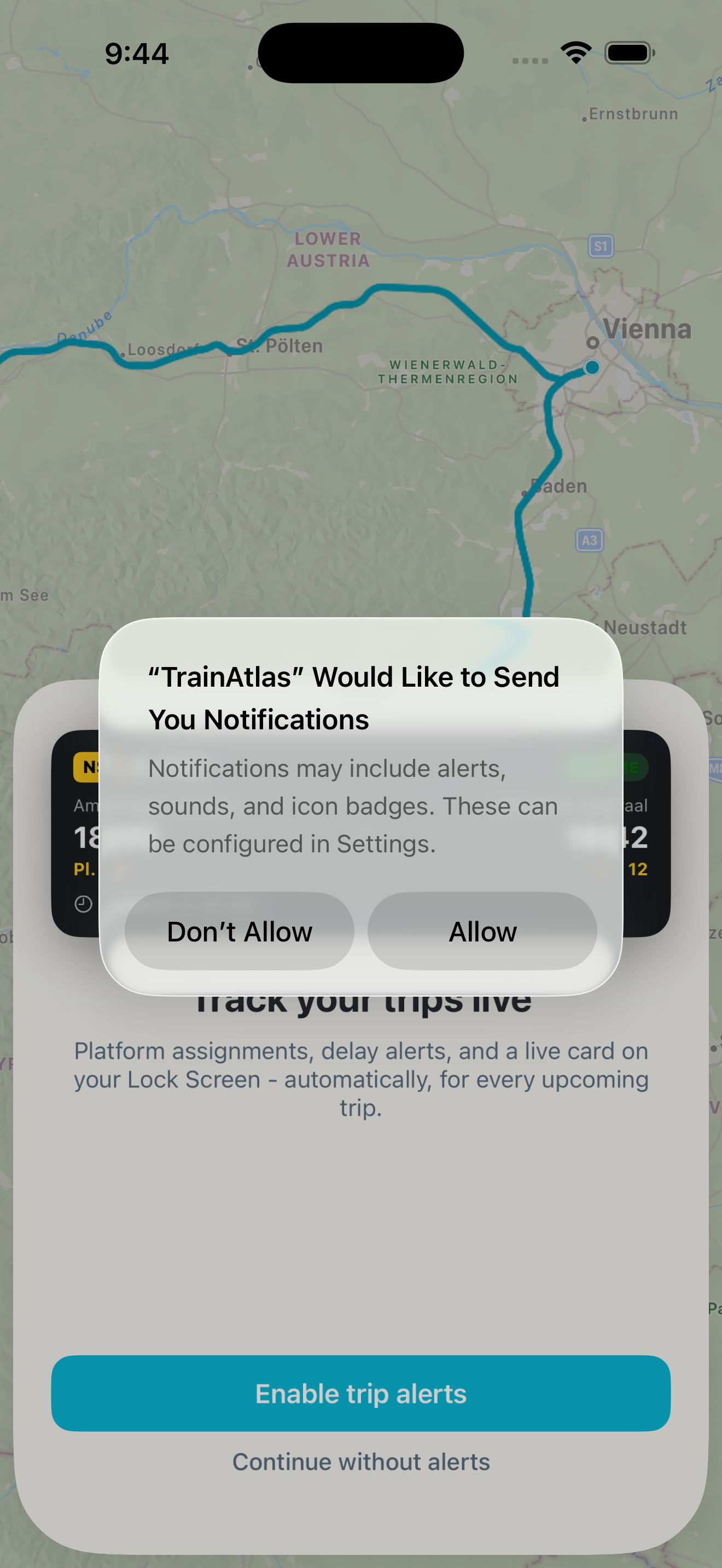
When iPhone asks whether TrainAtlas can send notifications, choose Allow if you want trip alerts. To review that choice later, open Settings > Notifications > TrainAtlas, then check Allow Notifications, alert locations and Sounds.
Focus and Scheduled Summary can affect how notifications reach you. Check those settings if an alert is quiet or appears later than expected. Apple's notification settings guide explains the available controls.
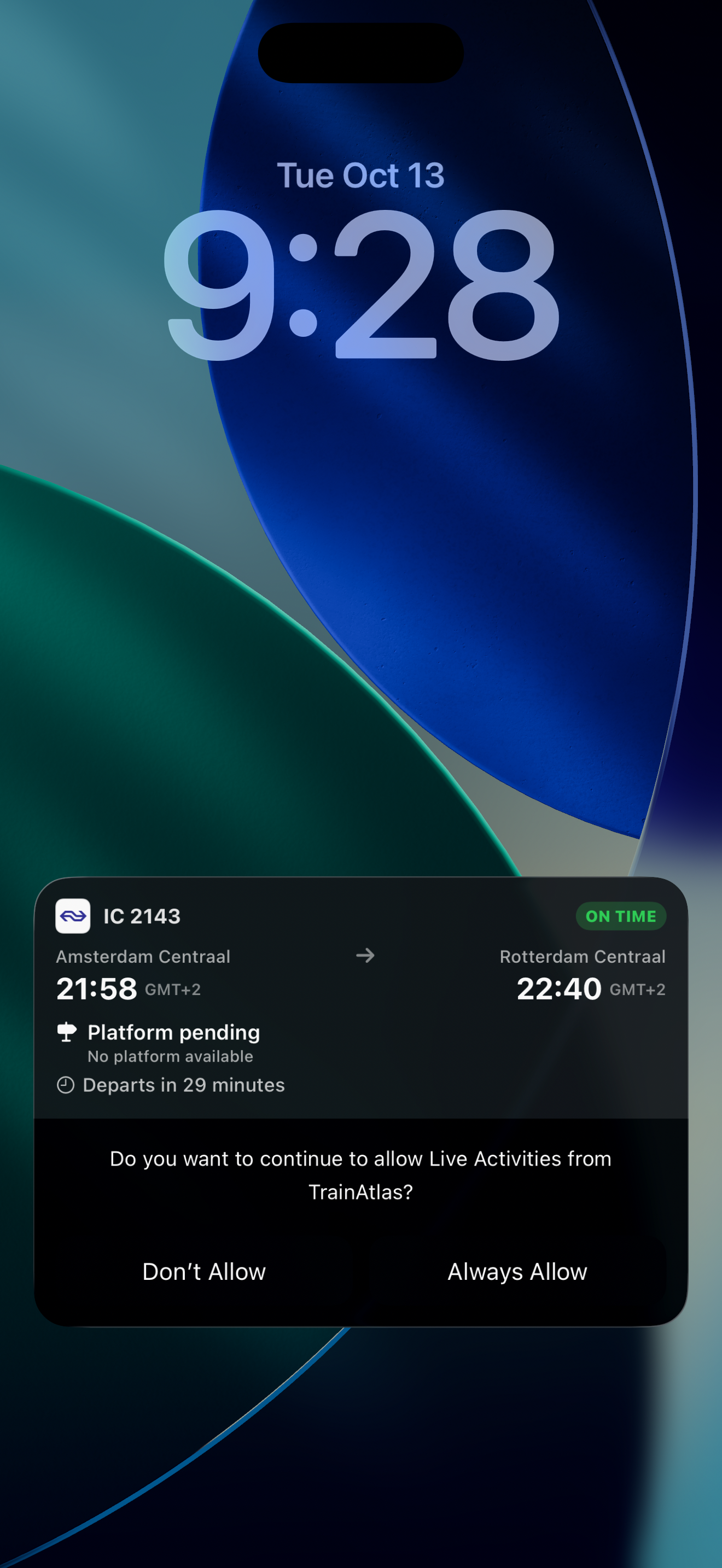
Live Activities use a separate permission. If iPhone asks to allow TrainAtlas Live Activities, allow them if you want the ongoing trip card. In the permission flow shown here, Always Allow lets later TrainAtlas activities appear too. You can review Live Activity access in TrainAtlas's iPhone app settings.
Phone permission alone does not identify your train. You still need the correct saved journey and the relevant TrainAtlas settings.
Start tracking the correct departure
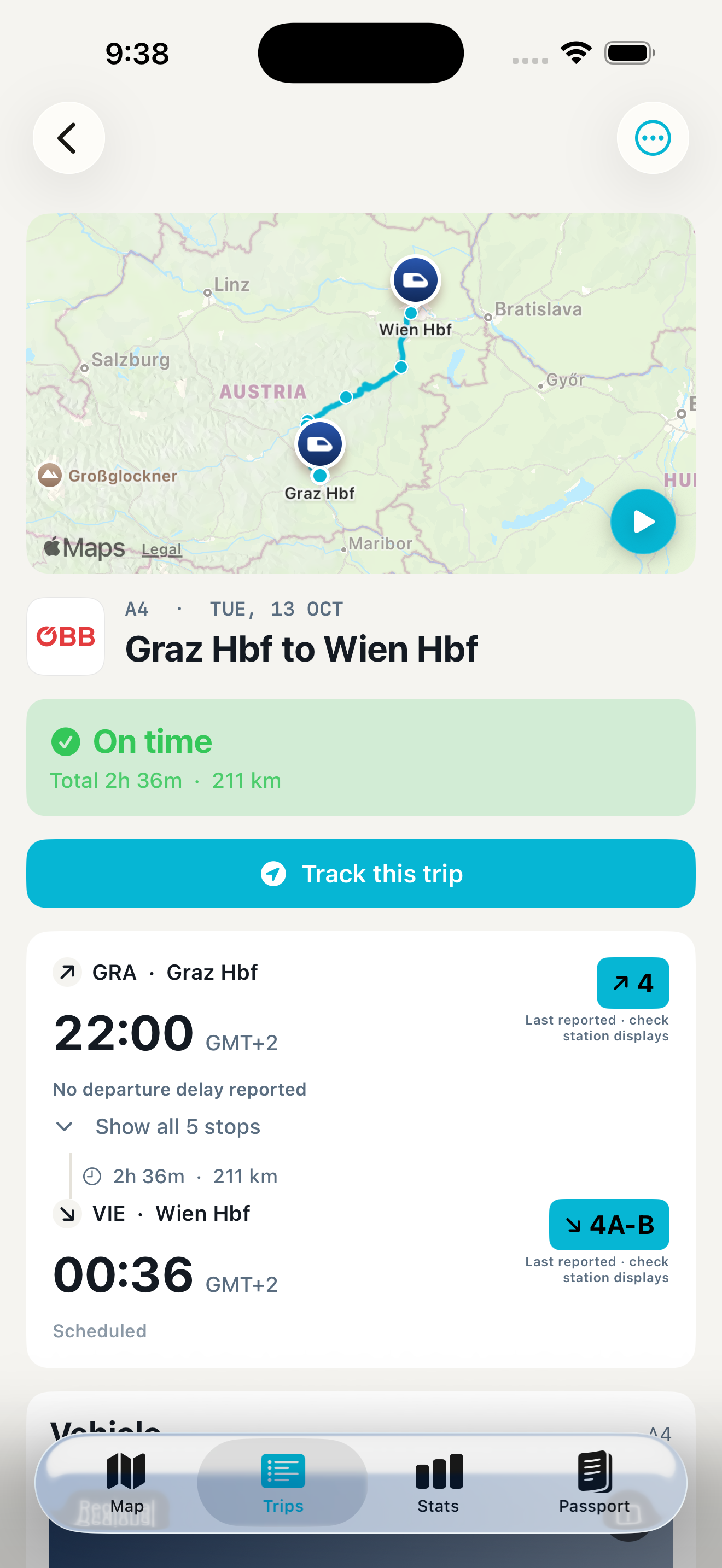
Open Trips, choose your saved journey and look for Track this trip in its details. The manual tracking control is available within eight hours before scheduled departure and while the journey remains inside its tracking window.
With a Free account, the button reads Track this trip with Pro. With Pro access, it reads Track this trip. When tracking is active, the control can read Tracking - tap to stop.
If the button is missing, first check the journey's date and departure time. A trip well in the future or one whose tracking window has ended will not show the same control. Also check Live trip tracking in Settings.
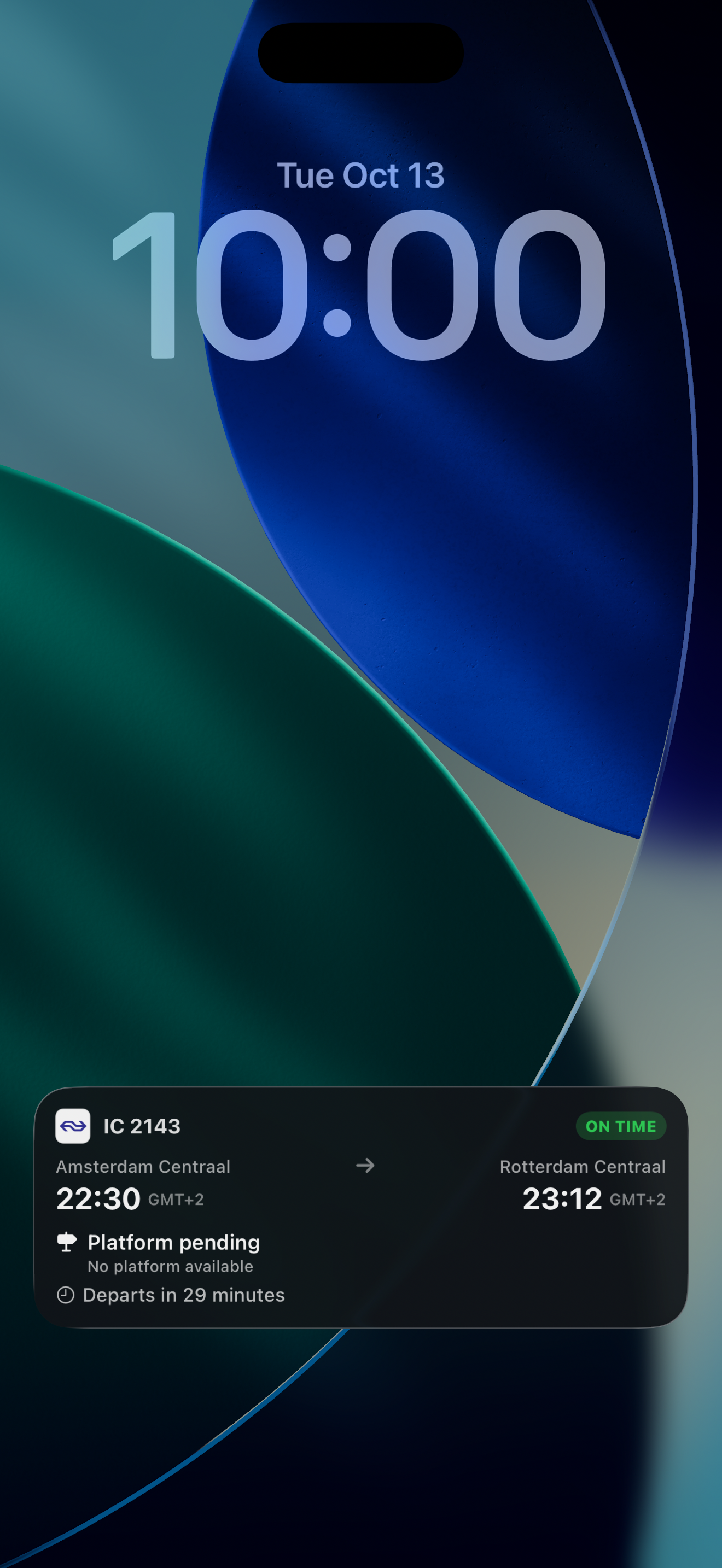
Once a Live Activity is active, it keeps trip information visible on the Lock Screen. Compatible iPhones can also show Live Activities in the Dynamic Island. See Apple's Live Activities and Dynamic Island guide.
Check that the card belongs to your actual departure. For a connection, review each train leg rather than assuming one card covers the entire journey.
Read platform changes and delay information carefully
A missing platform does not, by itself, mean a train is cancelled. The source may not yet have published an assignment, or the app may not have received usable platform information for that service.
Read the status alongside the number. Scheduled, Expected and Last reported describe different kinds of information. If the app says to check station displays, do so. An earlier assignment can change, and a platform from yesterday's train does not confirm today's departure.
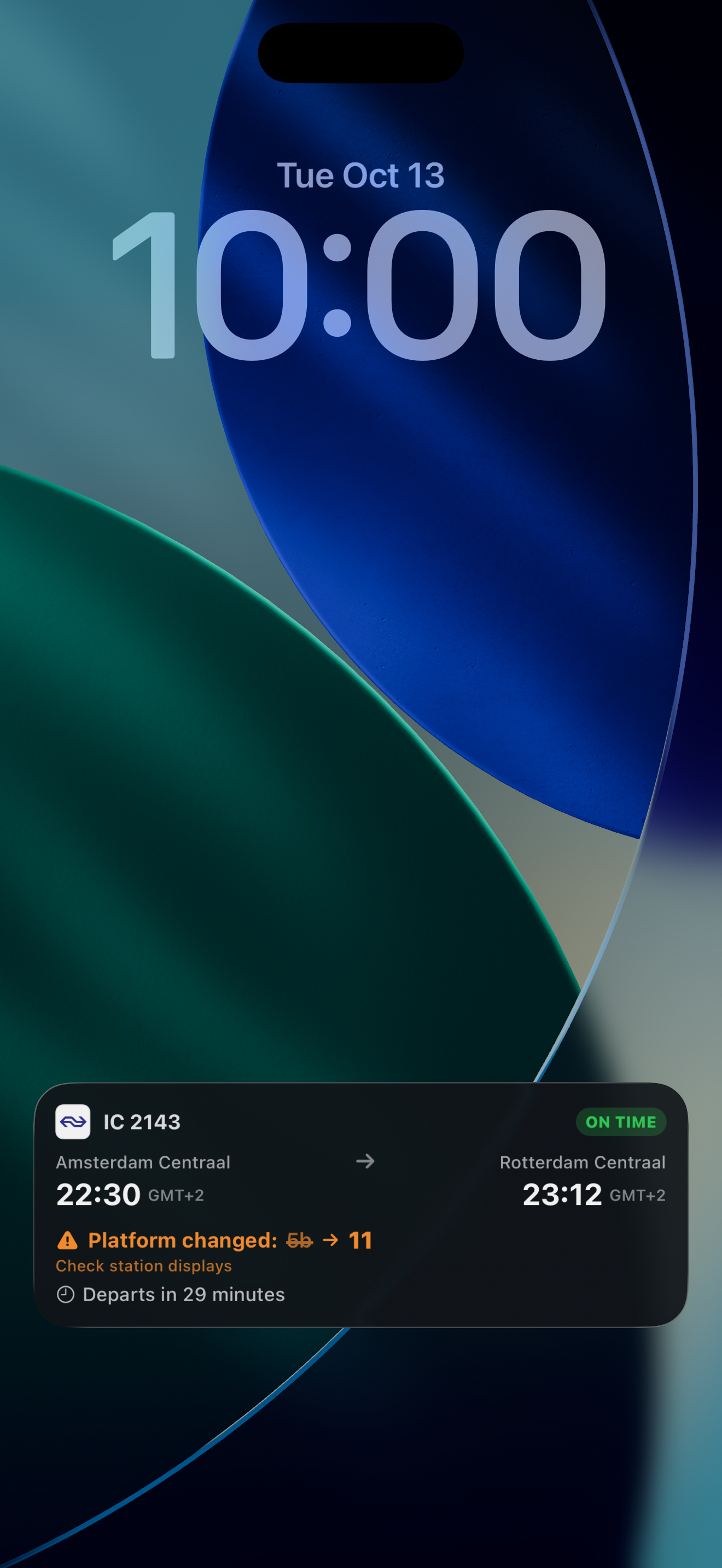
A later expected arrival is not necessarily a later actual departure. Read the departure and arrival fields separately. You should also avoid expecting a new audible notification for every small change in a prediction.
The Lock Screen screenshots above use controlled examples to explain the display.
Check UK platforms in National Rail
In the National Rail app, open Live Trains, enter the departure station and optionally the destination, then select the exact service. Use Pin this train to keep it accessible in the app. National Rail explains this workflow in its current app guide.
Pinning is useful for returning to the right train. The documented pinning workflow does not promise a push notification for every platform change. At stations where platforms appear close to departure, keep the live information available and listen for announcements.
When the app and the station board disagree, check the train number and departure time, then ask station staff. Do not rely on an earlier platform simply because it appeared first.
Follow a journey in DB Navigator
For a journey covered by DB Navigator, find the correct connection or open its ticket. Use Remember journey and the available travel notification options. DB's Navigator overview describes digital travel assistance and saving a journey without buying a ticket.
Confirm the date and individual train legs. These instructions follow DB's current documentation; they are not a claim that every operator or international connection receives the same updates.
Troubleshoot missing updates
| What you see | What to check next |
|---|---|
| No trip notifications | Platform and Delay alerts in TrainAtlas, iPhone notification permission, Sounds, Focus and Scheduled Summary |
| No Lock Screen trip card | Pro access, Live trip tracking, the selected trip and Live Activity permission |
| No Track this trip button | Correct travel date and whether the journey is within its tracking window |
| A blank or pending platform | Refresh the service information and check the station board; absence alone is not cancellation |
| Last reported platform information | Treat it as an earlier report and verify against station displays |
| A delay without a sound | Check separate notification settings; a changed Live Activity is not itself an audible alert |
Before boarding, confirm the station, date, train number or departure time, and current platform. For help choosing an app for a particular route, read our train tracking app guide.
Common questions
Does a missing platform mean my train is cancelled?
No. Check the cancellation status separately. A missing platform may mean the assignment is unpublished or unavailable in the source you are viewing.
Will a Live Activity alert me with a sound?
The card displays ongoing information. Sounds depend on separate notifications, app event support and your phone settings.
Can I rely on one app across every European railway?
Coverage varies by operator and service. Keep the relevant operator's information and station announcements available, especially around transfers.